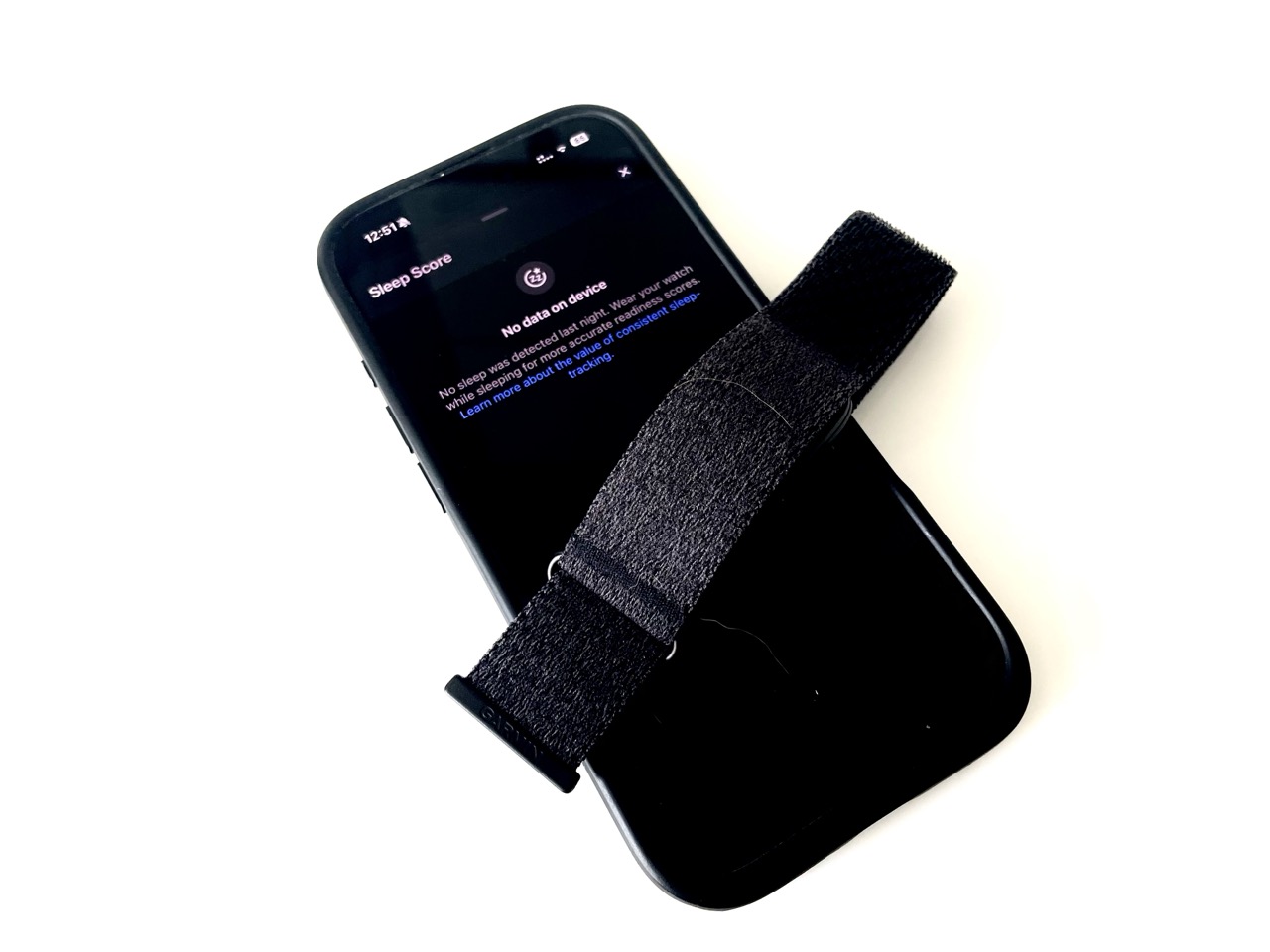
You wake up, open Garmin Connect, and… nothing.
No Sleep Score. No sleep stages. No overnight HRV. And potentially no useful Training Readiness update either.
That can happen with the Garmin CIRQA for a handful of reasons. Some are standard Garmin ecosystem quirks, such as device priority or a missed sync. But there’s also a much more interesting CIRQA-specific problem: the band can appear completely healthy in Garmin Connect while the optical heart rate sensor is, in reality, doing absolutely nothing.
I ran into exactly that.
So before factory-resetting anything or opening a support ticket, here are the six things I’d check.
1. First, Check Whether You Have Overnight Heart Rate Data
This is by far the quickest way to narrow down the problem.
Open Garmin Connect and look at your Heart Rate graph (More → Health → Heart Rate) for the previous night.
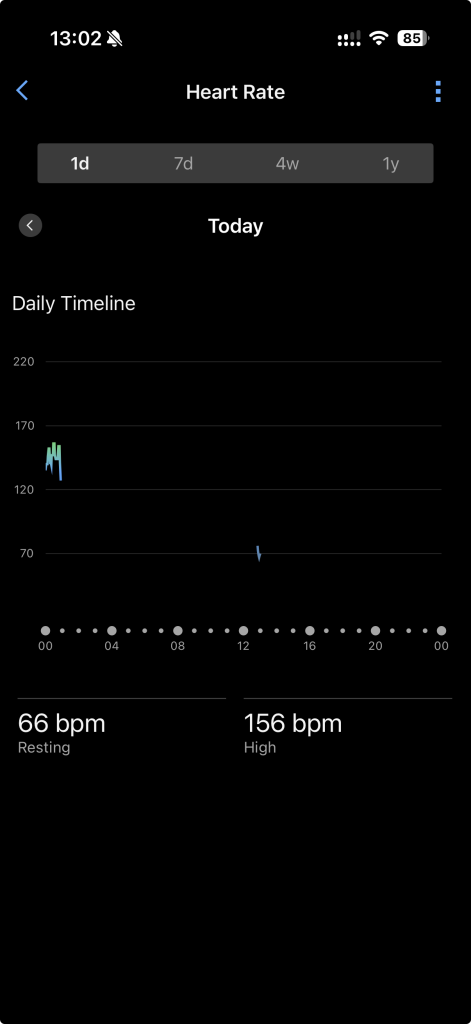
If you have continuous heart rate data but no recorded sleep, the optical sensor was probably working. In that case, start looking at device priority, synchronization, and your sleep schedule.
If you have no heart rate data either, the problem is further upstream. CIRQA either wasn’t measuring your heart rate at all, or it lost usable contact with your skin.
That distinction saves a lot of random troubleshooting.
Garmin requires heart rate data during the sleep period for normal sleep detection, so if the HR graph is completely empty, there isn’t much point starting with your Sleep Score settings.
And this is where things get interesting with CIRQA.
2. Check Whether the Optical Sensor Is Actually Running
Take the CIRQA off your wrist and look at the underside.
The optical heart rate LEDs should come on when the device is trying to measure your heart rate. You can also open Garmin Connect and see whether a current HR value appears.
There are already user reports of an early CIRQA bug where the optical sensor fails to restart after charging.
The nasty part is that the rest of the band can look perfectly normal.
CIRQA may still:
- show a normal battery level;
- remain connected to your phone;
- sync successfully with Garmin Connect;
- respond to the button;
- yet record no heart rate or any of the metrics that depend on it.
That’s exactly what happened to me. Before going to bed, I took a shower and put the CIRQA on its charger while I was in there. Afterwards, I put it back on and went to sleep as usual.
The next morning Garmin Connect showed 98% battery, and the CIRQA was connected and syncing normally. But there was no sleep. Then I checked the Heart Rate graph. Nothing there either.
And when I took the CIRQA off, the optical sensor wasn’t running at all.
So in my case, the missing sleep wasn’t really a sleep-tracking problem. The CIRQA had apparently come off the charger without restarting its optical HR sensor.
What fixed it for me was:
Garmin Connect → power the CIRQA off completely → turn it back on using the physical button.
Immediately after restarting, the optical sensor came back to life. Other CIRQA users have reported similar post-charging behavior, so at this point I’d strongly recommend doing one very simple check after charging:
Make sure the band is actually measuring your heart rate before putting it back on. It takes about two seconds and could save an entire night of missing data. For now, this appears to be a user-reported firmware issue rather than an officially documented Garmin bug.
3. Make Sure CIRQA Is Your Primary Wearable
If CIRQA is your only Garmin wearable, you probably don’t need to think much about this.
But CIRQA is exactly the kind of device that people are likely to use alongside another Garmin device.
For example:
- CIRQA for 24/7 tracking and sleep;
- Edge for cycling;
- Fenix, Forerunner, or Venu for other workouts.
If you have several devices in Garmin Connect, make sure CIRQA is configured as your Primary Wearable.
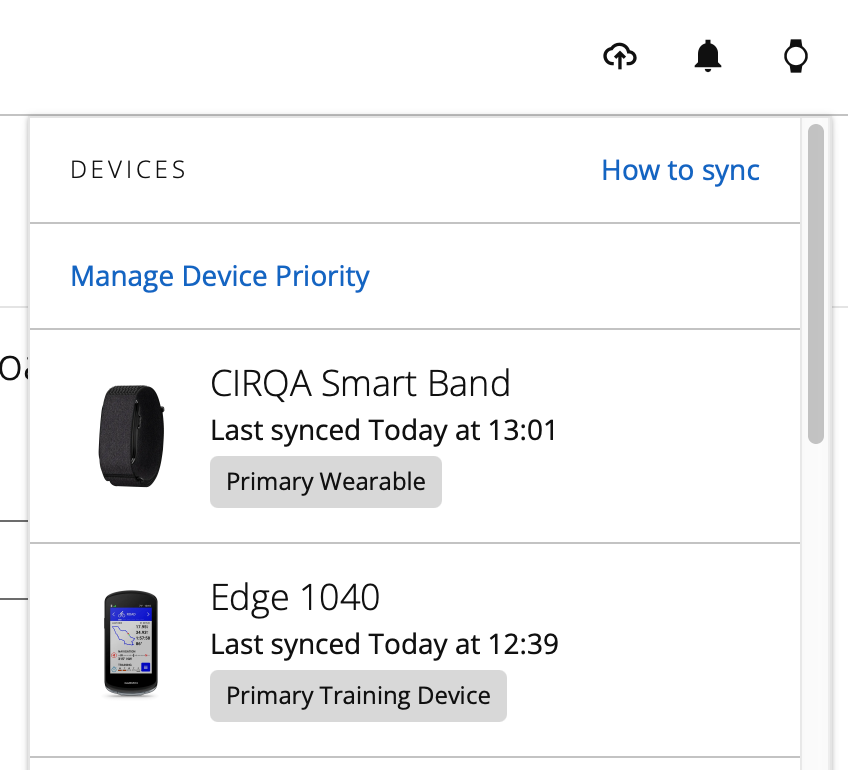
You can find it here:
Garmin Connect → More → Settings → Device Priority → Primary Wearable
If you’re sleeping with CIRQA, that’s the device Garmin should normally be treating as the primary source for your all-day wellness data.
Having another device set as Primary Wearable doesn’t guarantee that your sleep will disappear, but if you’re troubleshooting missing sleep data, this is one of the first configuration items worth eliminating.
4. Force a Manual Sync
Sometimes the sleep was recorded perfectly well on the band and Garmin Connect simply hasn’t received it yet.
On the Garmin Connect home screen, look near the CIRQA icon at the top. There’s a circular sync icon with two arrows immediately to the left of the CIRQA icon. Tap it and let the synchronization finish.
If your sleep, HRV, and heart rate data suddenly appear, congratulations: nothing particularly interesting happened. It was simply a sync problem.
But there’s one important caveat with CIRQA. A successful sync does not necessarily prove that the optical sensor was working. In my case, CIRQA was connected and syncing just fine while recording absolutely no heart rate data. So if the sync completes successfully but your overnight Heart Rate graph is empty, go back to step 2.
5. Check Your Sleep Schedule
Garmin also uses your configured sleep schedule as one of the inputs for sleep detection.
You can find it in Garmin Connect under:
More → Garmin Devices → CIRQA → User Profile → Sleep Schedule
Depending on the exact Garmin Connect version, the wording or location may vary slightly, but you’re looking for the setting containing your usual bedtime and wake-up time.
Make sure those times are at least reasonably close to your actual sleeping pattern.
This is particularly worth checking if:
- you recently travelled across time zones;
- your sleep schedule changed significantly;
- you’ve only recently configured the CIRQA or Garmin Connect.
That said, don’t overthink this setting.
Your Garmin doesn’t simply stop tracking at the exact minute your configured Sleep Window ends. Think of the schedule as an input into the sleep-detection algorithm rather than a hard recording boundary. And again, if there’s no overnight HR data whatsoever, this probably isn’t your problem.
6. Check Fit and Heart Rate Settings
Finally, there are the boring causes. And boring causes are still causes.
If CIRQA recorded some of the night but your HR graph contains large gaps, check whether the band maintained decent contact with your skin.
Possible causes include:
- a strap that’s too loose;
- the sensor moving while you sleep;
- sleeping on your arm and shifting the band;
- tattoos directly underneath the optical sensor;
- optical HR being disabled;
- activity tracking being disabled;
- power-saving settings interfering with sensors.
These tend to look different from the charging bug. With poor skin contact, you’ll usually see intermittent HR data or gaps. With the issue I experienced after charging, there was simply nothing. The optical sensor itself wasn’t running.
The 30-Second Troubleshooting Version
If your CIRQA didn’t record sleep last night, don’t start randomly changing settings.
Start with this:
Do you have overnight heart rate data?
If yes:
Check Primary Wearable → manually sync → check Sleep Schedule.
If no:
Check whether the optical LEDs are working → restart CIRQA if necessary → then check fit and HR settings.
And for CIRQA specifically, I’d add one more rule for now:
After charging it, verify that the optical sensor actually came back on.
Because apparently, a CIRQA can be sitting there at 98% battery, connected to Garmin Connect, happily syncing away…
…while measuring precisely nothing.
That’s not ideal behavior for a device whose main job is 24/7 sleep, HRV, recovery, and wellness tracking.
